
How to Recall Your Google Meets Fast
I have to confess. I am a sinner — I constantly forget to log my time spent on tasks! I postpone this demanding chore for a week, until our PM comes bashing my door (and I work remotely!): “Please log your time, we need to create reports!” And here lies the problem: usually, I can hardly remember even what happened yesterday, let alone the whole week. I believe I am not alone here.
Alright, so now I need to log my work time for the week. I can track code contributions by commit dates, but how do I log meeting times? A common way to do this is to sweep through emails, Slack messages and meeting notes, but it is chaotic and time-consuming. If you use Google Meet, there is a much more straightforward way — Google Takeout!
Google Takeout is a service that allows you to download all data Google keeps about your account. This is a very interesting yet terrifying resource: you’ll find data from over 60 different services, some of which may keep gigabytes of your data! But for our current goal, we only need Google Meet data.
What to do
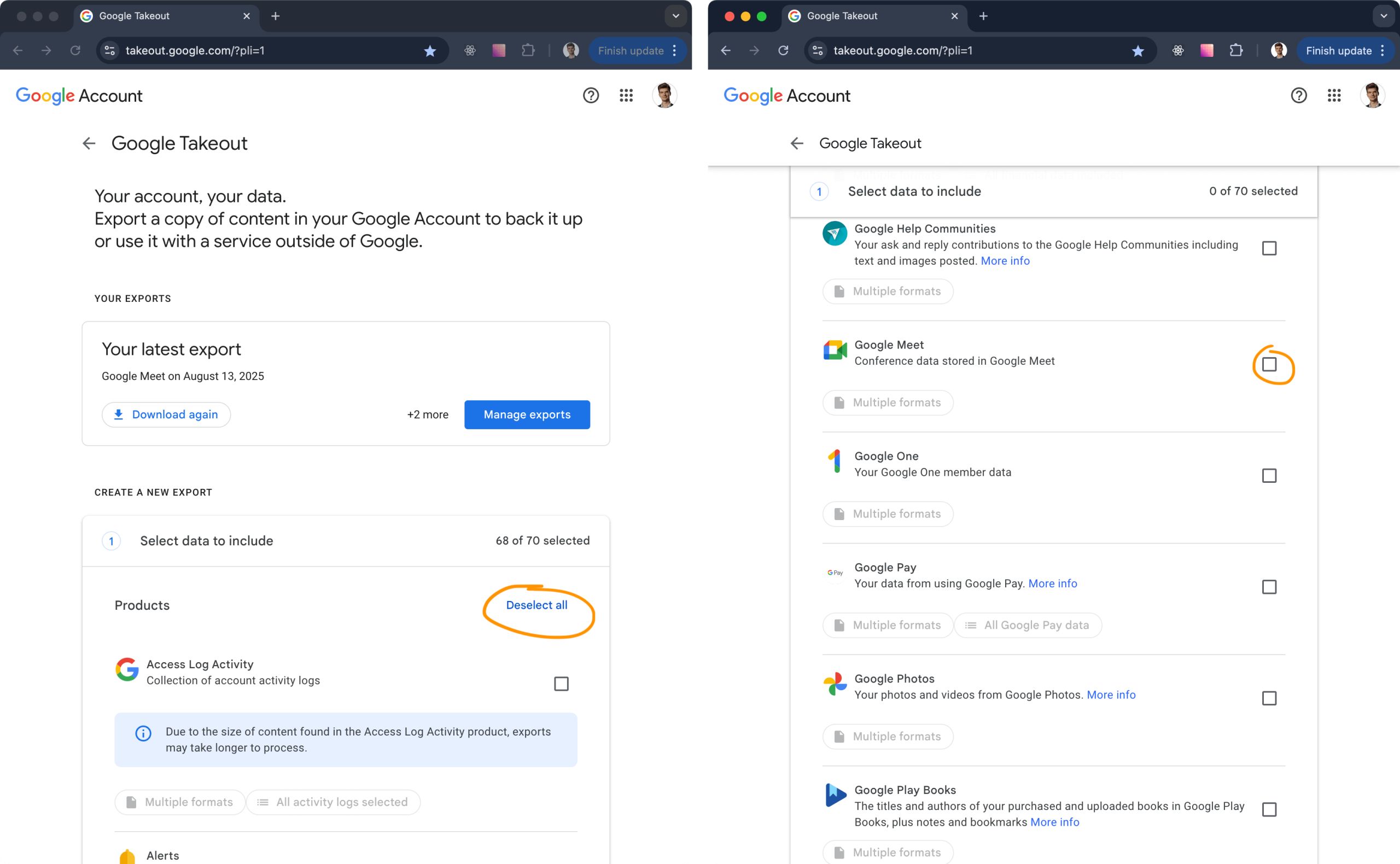
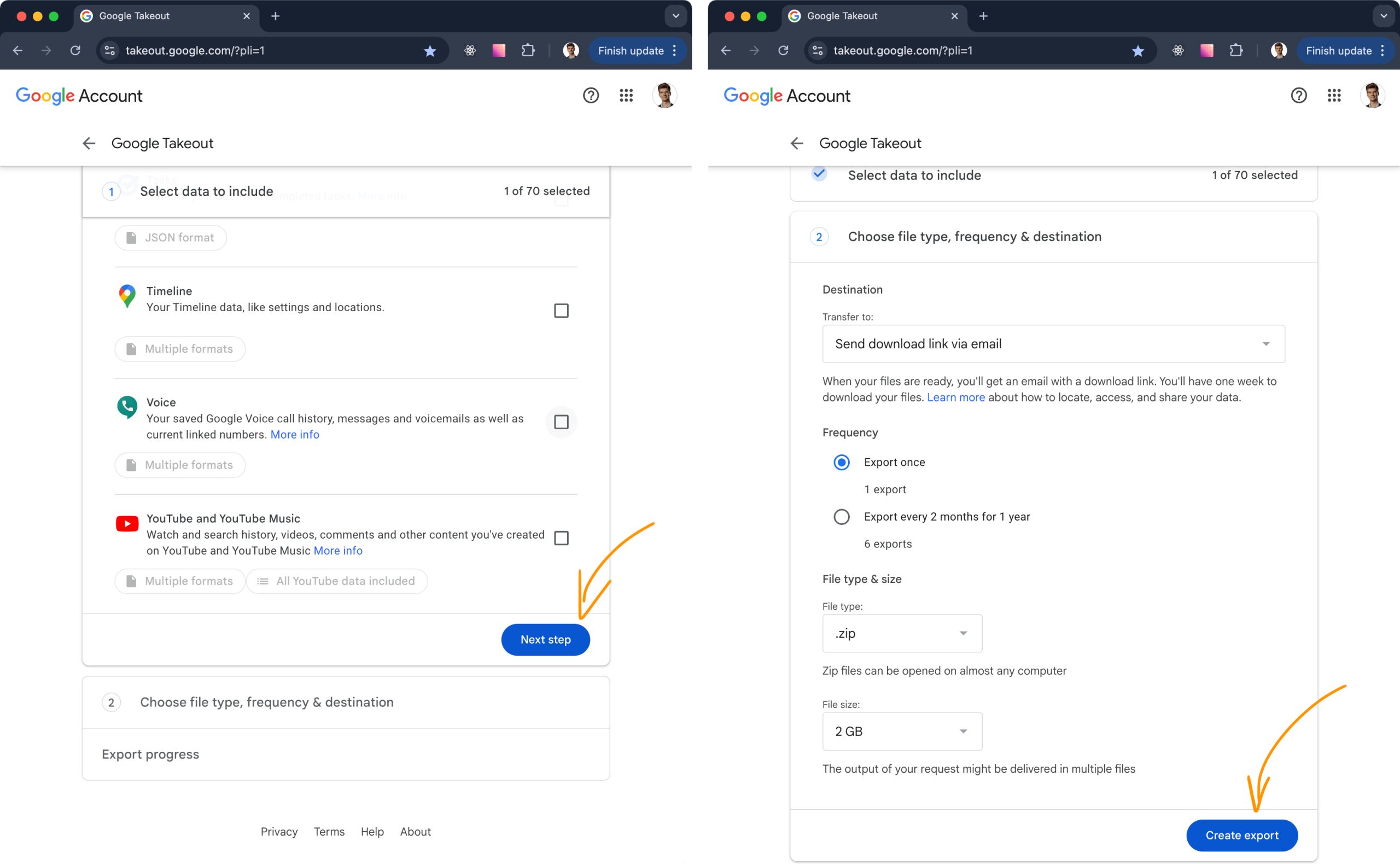
First, visit https://takeout.google.com/ from a work account. Deselect all checkboxes, then find and mark Google Meet. Scroll to the bottom of the page, and click primary-colored buttons a couple of times. Google will prepare data export and will send a link to your email. Use it to download a zip archive with data and unpack it.
The downloaded folder has a nested structure of ./Takeout/Google Meet/ConferenceHistory with two .csv files inside. We will need only conference_history_records.csv. It is a large csv file with about 20 columns, holding information about all meets for your account. Let’s tidy it up with some command line magic to get a convenient output:
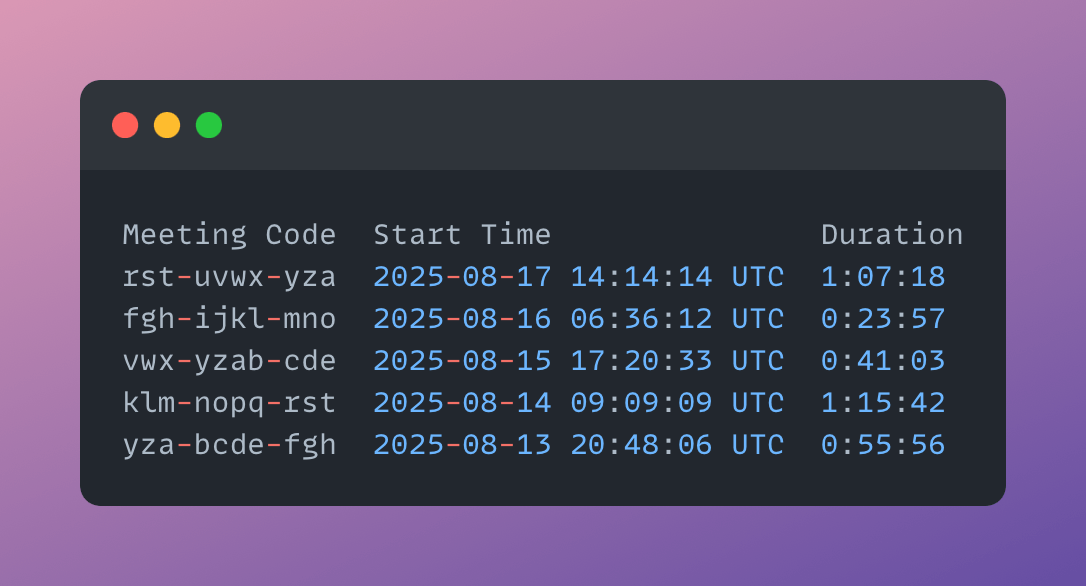
awk -F ',' '{print $5 "\t" $10 "\t" $12}' "~/Downloads/Takeout/Google Meet/ConferenceHistory/conference_history_records.csv" | head -n 20 | column -ts $'\t'This command parses the csv and outputs only important data in a columnar view: meeting code (the same one used in Google Meet Links), date and time of the meet and its duration.
Meeting Code  Start Time               Duration
rst-uvwx-yza  2025-08-17 14:14:14 UTC  1:07:18
fgh-ijkl-mno  2025-08-16 06:36:12 UTC  0:23:57
vwx-yzab-cde  2025-08-15 17:20:33 UTC  0:41:03
klm-nopq-rst  2025-08-14 09:09:09 UTC  1:15:42
yza-bcde-fgh  2025-08-13 20:48:06 UTC  0:55:56
hij-klmn-opq  2025-08-12 07:02:08 UTC  0:17:15
opq-rstu-vwx  2025-08-11 15:33:54 UTC  0:34:29
tuv-wxyz-abc  2025-08-10 05:44:21 UTC  1:49:37
def-ghij-klm  2025-08-09 19:59:59 UTC  0:26:04
uvw-xyza-bcd  2025-08-08 11:11:11 UTC  0:09:48
Now it is much easier to recall which meetings they were and how long they lasted. Unfortunately, this file does not provide meeting names — but now retrieving them is easy: just copy-paste meeting code into your gmail search box, and you will find your invitation email with all the details.
This way I manage to save myself some 15 to 20 minutes each week. I hope this trick helps you, too.